

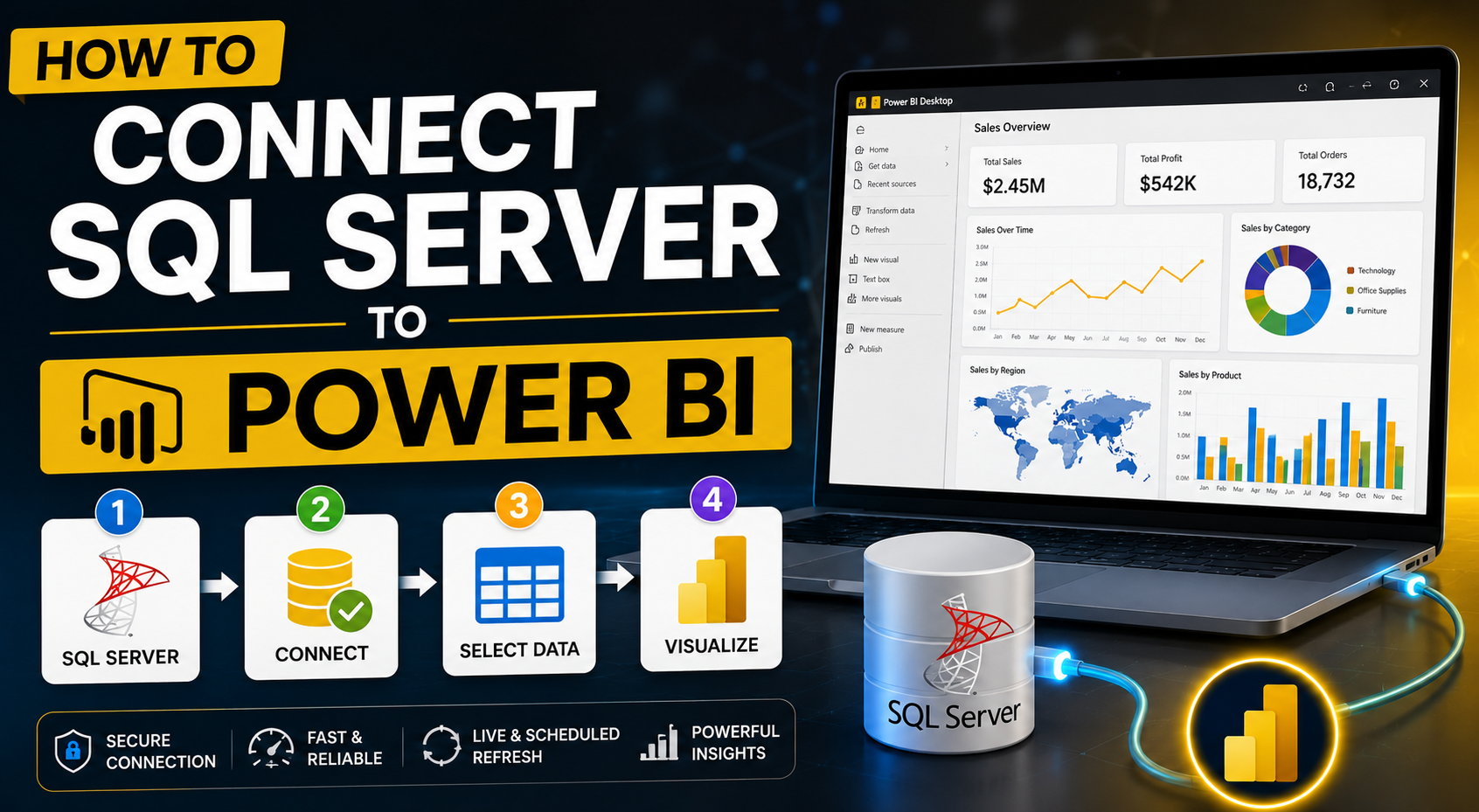
Modern businesses generate massive amounts of operational data inside databases, ERP systems, CRM platforms, ecommerce applications, and enterprise software environments. However, raw database records alone rarely provide meaningful business insights unless they are transformed into interactive analytics and reporting systems.
This is where Microsoft Power BI and Microsoft SQL Server become a powerful combination. By connecting SQL Server to Power BI, organizations can:
- Visualize large datasets
- Build real-time dashboards
- Automate reporting
- Monitor KPIs
- Improve operational intelligence
- Enable data-driven decision-making
SQL Server remains one of the most widely used enterprise databases globally, while Power BI continues leading the business intelligence market through advanced visualization and analytics capabilities.
At KnexBI, businesses frequently integrate SQL Server with Power BI to build scalable reporting environments, enterprise dashboards, and cloud-connected analytics ecosystems.
In this guide, we’ll explore what SQL Server and Power BI integration is, why businesses use it, connection methods, storage modes, security, and optimization strategies to ensure your reporting environment scales efficiently.
Why Connect SQL Server to Power BI?
SQL Server stores structured business data efficiently, but database tables alone are not designed for interactive business intelligence. Power BI transforms database records into interactive dashboards, real-time visualizations, KPI monitoring systems, and analytical insights.
This integration helps organizations centralize analytics across departments such as:
- Finance
- Sales
- Operations
- Marketing
- HR
- Supply chain management
The combination creates a modern analytics ecosystem capable of supporting both operational reporting and strategic decision-making through faster reporting, automated analytics, and enterprise-grade data management.
Understanding SQL Server and Power BI Integration
Power BI can connect directly to SQL Server databases using built-in Microsoft connectors. This native integration allows users to import data or query live databases seamlessly, build relationships, design data models, and generate automated reports.
Crucially, Power BI supports multiple database environments, including on-premise SQL Server setups, cloud-hosted SQL instances, and Azure SQL environments, giving organizations complete architecture flexibility.
Prerequisites Before Connecting SQL Server to Power BI
Before creating the connection, businesses should ensure they have the following pieces in place:
- SQL Server Access: Accurate connection details including the server name, database name, and valid authentication credentials.
- Power BI Desktop Installed: The application must be installed locally to configure datasets, write data models, and compile reports before cloud deployment.
- Proper Database Permissions: The target SQL account requires explicitly granted read access, table visibility, and execution permissions.
Step-by-Step: How to Connect SQL Server to Power BI
Step 1: Open Power BI Desktop
Launch Power BI Desktop on your system. From the Home ribbon tab, click on the Get Data button to pull open the master data connection panel.
Step 2: Choose SQL Server
In the database connection listing, select SQL Server and click Connect to activate the native, optimized Microsoft connector framework.
Step 3: Enter Server and Database Information
Type your target connection string parameters into the fields. Specify the Server Name (such as SERVER01\SQL2019 or an IP address like 192.168.1.50). The database field is optional; leaving it empty will pull up all databases accessible by your credentials.
Step 4: Select Data Connectivity Mode
Choose between the two primary foundational connection configurations:
- Import Mode: Loads snapshot data directly into Power BI's internal memory cache for incredibly fast dashboard interactions and complete modeling versatility. Best for mid-sized datasets.
- DirectQuery Mode: Leaves underlying data inside the SQL Server database and queries records live at runtime. Perfect for huge enterprise environments requiring real-time status visibility.
Step 5: Authenticate SQL Server Connection
Provide access proof utilizing one of the supported enterprise authentication options: Windows Authentication (current network credentials), Database Authentication (dedicated SQL Server username/password), or a cloud-synced Microsoft Account.
Step 6: Select Tables or Views
A Navigator window opens displaying structural elements. Check the tables and custom query views you need. Avoid bringing over raw tables containing unnecessary data to protect memory boundaries.
Step 7: Load or Transform Data
Click Load to bring data straight over, or click Transform Data to trigger the Power Query Editor interface. Use Power Query to filter out unwanted rows, change variable types, or join datasets before saving.
Step 8: Build Relationships and Models
Once your selected items are initialized, switch to the Model view to define relational links across your layout. Establish proper link cardinalities and set up organized star schemas to maintain robust DAX calculating performance.
Step 9: Create Dashboards and Reports
Drag data attributes directly onto the report canvas to map visuals. Implement slicing widgets, drill-through paths, and KPI tracking components to complete your business intelligence transformation.
Connecting SQL Server Using Advanced Queries
Instead of relying completely on auto-generated interface imports, Power BI allows developers to type customized SQL queries inside the connection window options.
For instance, specifying a custom statement drops data volume immediately at the database tier:
SELECT
    ProductName,
    SUM(SalesAmount) AS TotalSales
FROM Sales
GROUP BY ProductName
This customized script approach minimizes data payloads traveling through local networks, optimizing processing efficiency before the information ever hits front-facing visual charts.
Best Practices for SQL Server and Power BI Integration
To build an enterprise-level reporting infrastructure that remains maintainable and highly responsive as datasets scale, adhere to these key development rules:
- Use Views Instead of Raw Tables: Database views isolate analytics from structural table alterations, streamline complex column transformations, and significantly improve long-term workspace governance.
- Optimize Underlying SQL Queries: Avoid expensive
SELECT *patterns. Filter downstream data, ensure proper tracking index assignments live on target servers, and remove unnecessary multi-table joins. - Implement Star Schema data models: Keep your transactional metrics stored clearly in central Fact tables, connecting them out cleanly to isolated Dimension lookup tables rather than designing massive flat datasets.
- Trim Excess Columns and Rows: Only load information that directly serves an active visual component. Lessening data footprint improves workspace memory allocation and system refresh speeds.
- Configure Incremental Data Refreshes: Set up data processing logic that only appends new or recently updated rows instead of pulling multi-million row historical datasets over during scheduled refreshes.
- Proactively Monitor Database Performance: Keep close tabs on server load levels and query execution times, particularly in DirectQuery configurations, to eliminate back-end reporting bottlenecks.
Common SQL Server to Power BI Connection Issues
Organizations frequently face common configuration hurdles during structural integrations:
- Authentication Errors: Frequently triggered by typographic mistakes in passwords, credential expiration policies, or missing access rights on assigned database roles.
- Firewall Restrictions: Hardware and software security filters blocking default communication ports or halting secure transmission channels between local data centers and cloud services.
- Slow DirectQuery Performance: Usually caused by a lack of proper database indexing, overly complex query logic, or excessive dashboard visual density triggering hundreds of live parallel queries.
- Gateway Configuration Errors: On-premise databases published out to the cloud platform require an active, properly configured On-Premises Data Gateway to manage cloud service credential mappings and scheduled data synchronization.
SQL Server Security Best Practices
Protecting company information asset integrity is critical. Ensure your integration enforces strict role-based access control (RBAC), operates on a model of least privilege permissions, utilizes fully encrypted network connection tunnels, and routes cloud traffic exclusively through audited gateway paths.
Enterprise Use Cases for SQL Server and Power BI
Organizations globally connect these systems together to execute critical workflows including dynamic financial forecasting models, real-time inventory and supply chain tracking solutions, marketing performance attribution matrices, and executive operational monitoring applications.
How KnexBI Helps Businesses Connect SQL Server to Power BI
At KnexBI, we specialize in implementing scalable database and business intelligence integrations. We support organizations across enterprise dashboard development, cloud analytics migrations, executive reporting layout design, and query performance tuning.
Our specialized team helps remove analytics performance bottlenecks, design clean star-schema data models, and deploy reliable gateway configurations—transforming raw data pools into scalable enterprise assets.
The Future of SQL Server and Power BI Integration
As analytics trends evolve, the relationship between databases and front-end tools is growing tighter. Microsoft continues to build seamless bridges between local SQL Server nodes, Azure cloud data architectures, Microsoft Fabric ecosystems, and Power BI visual layers, enabling teams to inject automated insights and predictive models straight into standard workflows.
Conclusion
Connecting SQL Server to Power BI unlocks a massive opportunity to shift from reactive data tracking to predictive business intelligence. By adhering to core database architecture guidelines, refining query syntax, prioritizing efficient semantic star modeling, and securing user gateways, you can build an agile reporting environment that scales cleanly alongside your growing organization.